Official GuideFirst-Time Setup
Shadowrocket Setup Guide
Import a Subscription and Test Your Connection
For iPad and iPhone. Follow the steps in order: add a server, choose a mode, connect, test, and troubleshoot. Get one connection working before adjusting rules or automatic connection settings.
The official screenshots help identify screens and fields; the current interface on your device may differ. Server entries shown in screenshots are examples, not connection details to copy. Use your own information.
01 / ADD SERVER · SUBSCRIBE
Add a server or import an existing subscription
Choose one of two options: import a subscription to add a group of entries, or manually add and save a single server.
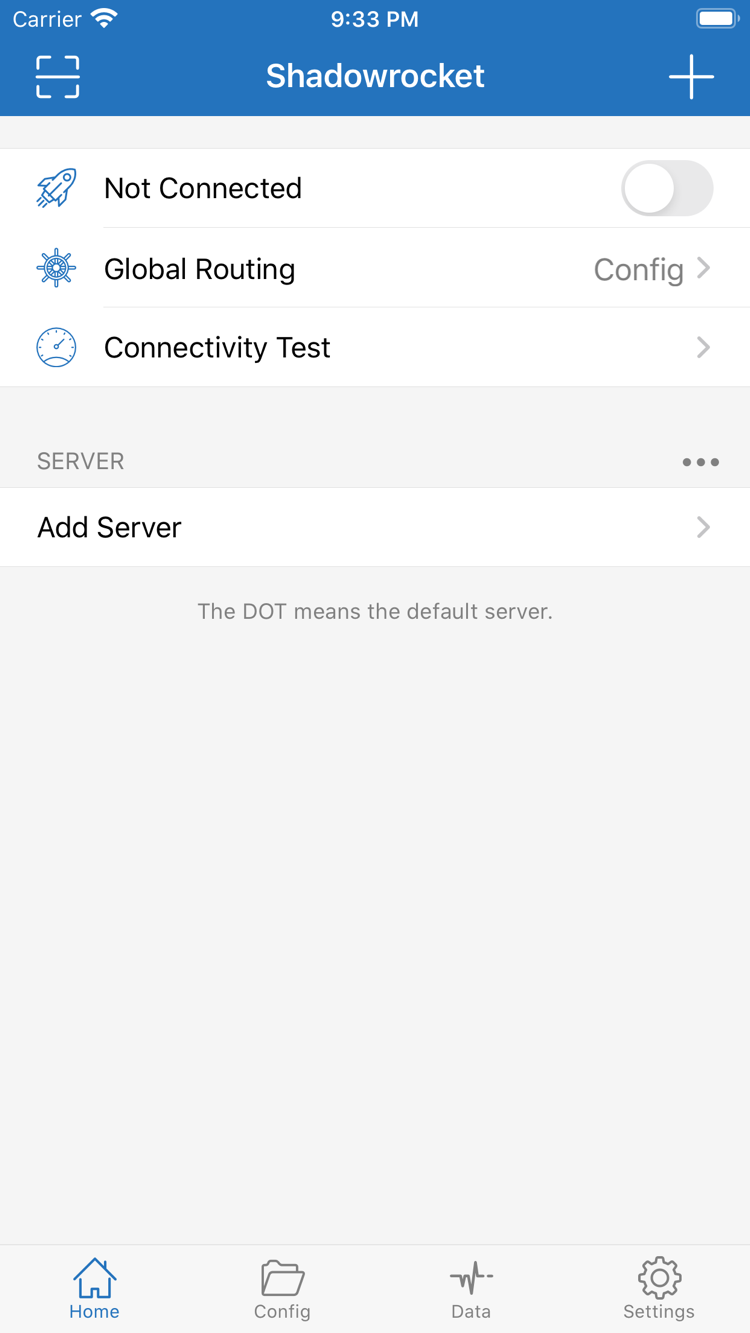
After opening Shadowrocket, go to Home and find the SERVER section and Add Server at the bottom. Identify the details you have: a complete URL that updates a group of servers is a subscription link; a set of fields including protocol, server address, port, and authentication details is for manual setup. These are not interchangeable just because both are text. If importing fails, check the information type before trying to save it again.
Have a subscription? Choose Subscribe
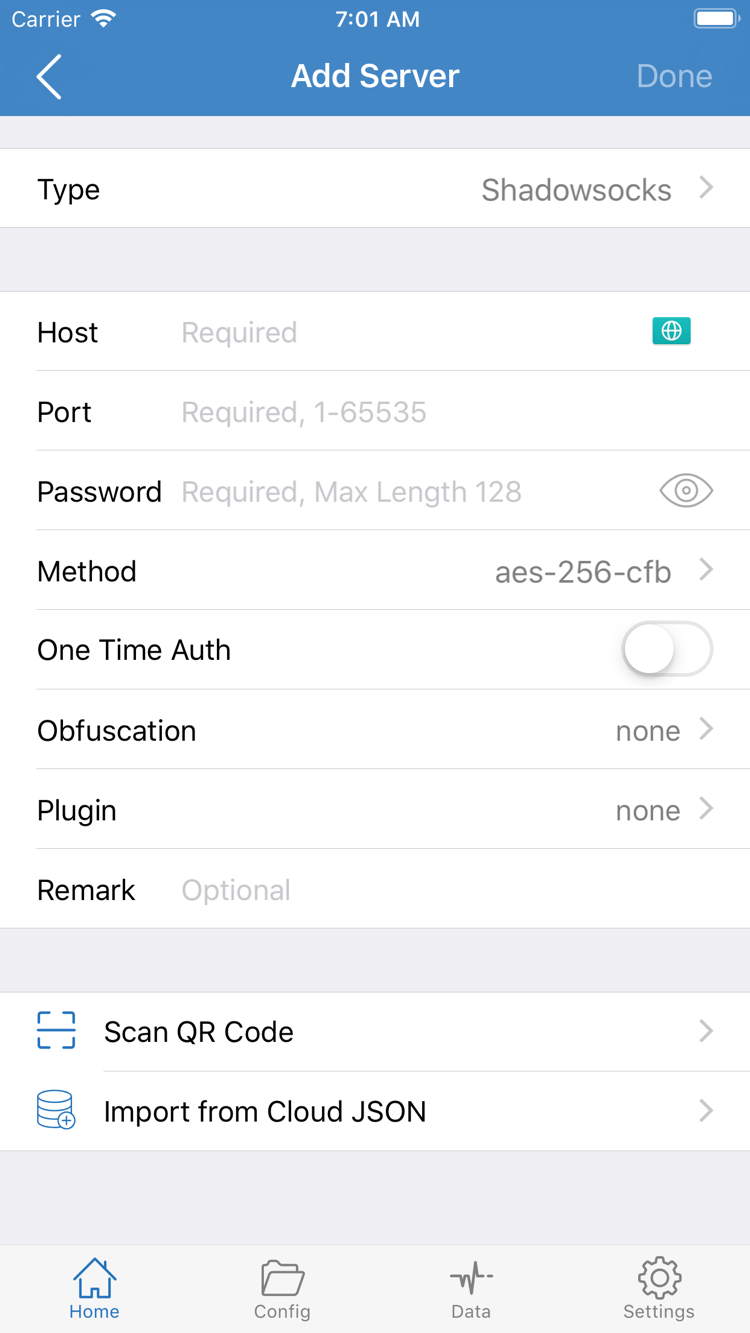
Tap Add Server, then tap Type on the add screen and choose Subscribe. Paste your complete subscription URL into the address field. If there is a remarks field, enter a name that helps you identify it. Check that the URL is complete, especially for spaces, line breaks, or extra text added when copying from a messaging app. URL parameters may be needed for authentication; don't remove them or share the full URL publicly.
Save and return to Home. Wait for the subscription to load, then check for the corresponding group and server entries under SERVER. Saving a subscription name does not mean its contents were fetched successfully. If the list is still empty, check that your current network can access the URL and that the URL is valid. To refresh it, use the action for that subscription entry; there is no need to create multiple subscriptions with the same name.
Have server details? Enter the fields for the selected Type
To add a server manually, choose the protocol that matches your details under Type in Add Server, then enter Host, Port, and the required authentication fields. The Password and Method shown in the screenshot are examples for that type; fields vary by protocol, so use your own server details. Host is usually a hostname or IP address, not a full webpage URL. Check the capitalization and characters in the port and password carefully.
If you have a QR code, use Scan QR Code. Import from Cloud JSON is only for existing data in a compatible format. After saving, return to SERVER and check that the name, type, and address match. Keep one clearly identifiable test entry before moving on to Global Routing. Avoid changing the protocol, subscription, and rules all at once, so you can pinpoint the cause if something fails.
02 / GLOBAL ROUTING · CONFIG
Choose a Global Routing mode
The server determines the available connection destination; Global Routing determines how traffic is handled.
After adding a server, return to Home and tap Global Routing. First, distinguish between the three modes: Config, Proxy, and Direct. These are not server protocol types or separate subscriptions. The requests handled by the same server may vary depending on the selected mode.
- Config: Requests are handled according to the rules in the active configuration. Some may use PROXY, while others may use DIRECT or REJECT, depending on the rule conditions and order.
- Proxy: Traffic handled by this mode uses the selected proxy. This can help determine whether a problem is related to routing rules; it does not mean every system request necessarily uses the same connection.
- Direct: Connects directly. Even with the connection switch on, selecting Direct does not mean requests are being routed through the selected server.
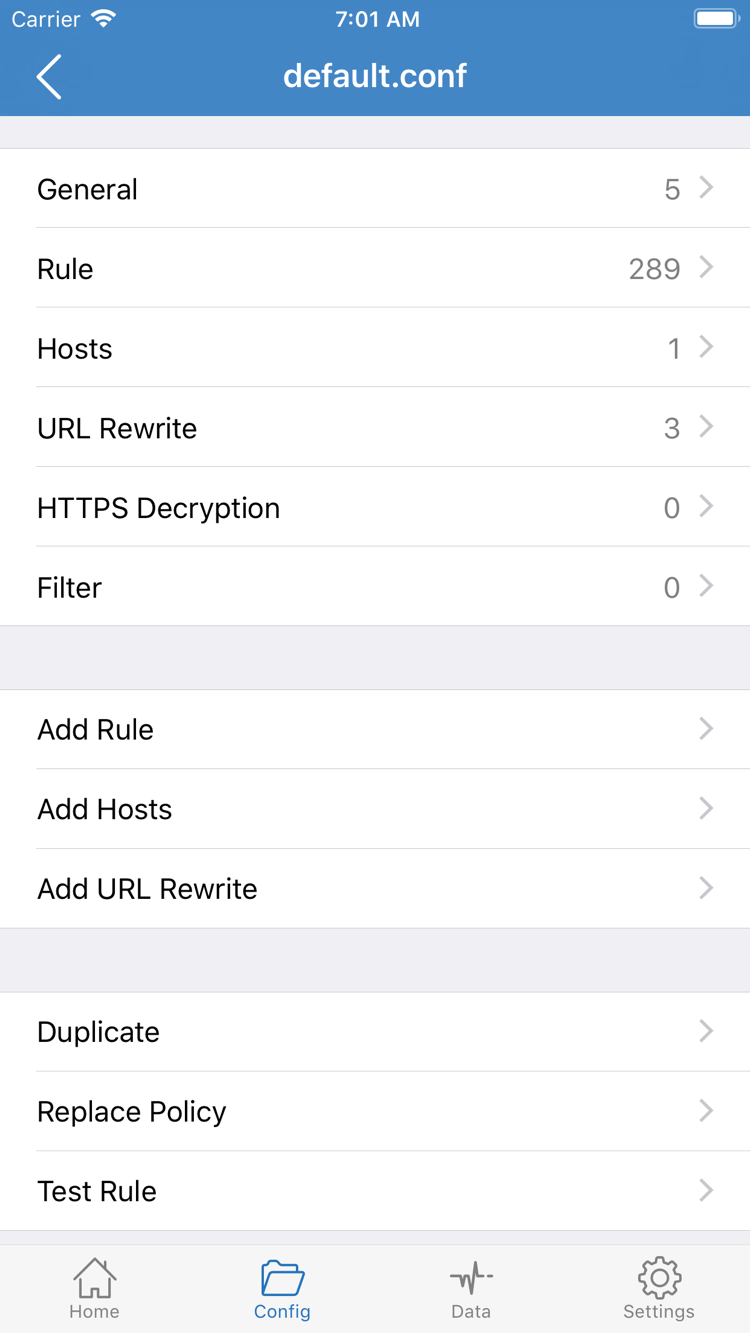
To use rule-based routing, open Config at the bottom and check which configuration is active, then review its rules. A server subscription and a configuration have different roles: subscriptions mainly manage server details, while configurations define general settings, rules, and related options. Successfully importing a subscription does not mean that a configuration suited to your routing needs is active.
In the official screenshot, the configuration editor is organized into sections such as General, Rule, Hosts, and URL Rewrite. Use Add Rule to add a rule. You don't need to change these sections individually to make your first connection, or enable HTTPS Decryption for basic connectivity. Keep an existing configuration unchanged for now. Before editing, save a copy so troubleshooting changes don't become permanent by accident.
When reviewing Rule, check whether specific conditions come before broad ones, and which policy the final FINAL rule points to. PROXY routes traffic through a proxy, DIRECT connects directly, and REJECT blocks the request. If a rule refers to a custom policy name, make sure that policy exists. For syntax and matching order, see Rules and Configuration Reference. For now, choose a mode without rewriting the entire configuration.
If you can't assess the existing rules yet, note the current mode and briefly select Proxy to test the connection. Once you've confirmed the server works, switch back to Config and check the rules. This helps distinguish a server failure from rules sending requests to different policies. After choosing a mode, return to Home; the next step is to turn on the connection.
03 / HOME · VPN
Select a server and turn on the connection
Check your selection before allowing the system VPN configuration.
Return to Home and tap the server you want under SERVER. Check that the selection indicator is on the correct entry. If you recently refreshed a subscription, check your selection again, as names, order, or available entries may have changed. Then confirm that Global Routing is still set to the mode you chose in the previous step; otherwise, Direct may lead you to think you're testing a proxy connection.
Tap the connection switch next to Not Connected at the top. The first time you connect, the system may ask to add a VPN configuration. Review the prompt, allow it, and complete authentication with your device passcode or biometrics as required. This registers a network configuration with the system; it does not import a subscription or replace server authentication. If you canceled the permission prompt, return to Home and try connecting again, then check for any pending system prompts.
After allowing access, return to Shadowrocket and check whether the connection status and switch at the top remain on. iPad and iPhone layouts and system status indicators may differ, but the checks are the same: a server is selected, Global Routing is confirmed, system access is allowed, and the app status has changed. Don't judge a connection failure only by whether VPN appears in the status bar; the indicator's visibility depends on the device and where it is displayed.
If the switch turns off immediately, troubleshoot system access or connection startup first; don't rush to change all your rules. If the switch stays on, continue to test actual requests. A connected status means the network configuration has started, but alone it cannot confirm that server authentication, website access, DNS, and routing are all working.
04 / CONNECTIVITY TEST · DATA
Test your connection and routing
Once connected, run Connectivity Test on Home and check the result for your selected server. A successful test means the selected test method received a response; a failed test means further checks may be needed. Neither result replaces testing actual access. Test methods may use different destinations and routes, and latency numbers don't represent the speed of every app. Avoid repeatedly changing your configuration to chase a lower number.
Next, open Safari and visit a page you intended to use. Wait for it to load fully. If the page was already open, refresh it or open a new one to reduce the effect of caching. Test one destination, then another for a different purpose. Specific observations such as “connects, but the page loads slowly,” “one page fails,” or “all pages fail” are more useful for troubleshooting than a general “it doesn't work.”
Use Data to check the actual routing path
To check Config routing, return to Shadowrocket and open Data to review relevant request records. If request logging is available, use the request domain, matched rule, and target policy to determine the actual path. If a request expected to use a proxy matched DIRECT, check the rules and Global Routing before changing servers. If it used PROXY but still failed, check the server details, destination service, and current network.
Change only one condition at a time when testing. For example, keep the same server and network while comparing Config with Proxy, or keep the mode unchanged and switch Wi-Fi to another network you can use. Retry the request after each change and record the result. This gives you comparable evidence instead of a one-off success after changing several settings at once.
Once you've confirmed the results, restore the Global Routing mode you intend to use. If you need automatic connections later, configure On Demand separately. First complete a manual connection from start to finish so you can distinguish automatic triggers from server connection issues.
05 / SETTINGS · DIAGNOSTICS
Check settings based on where the failure occurs
Keep the conditions reproducible, check one layer at a time, and don't use repeated reinstalls as a substitute for troubleshooting.
Import fails or the SERVER list is empty
First, return to Add Server and check Type. Use Subscribe for a subscription link; enter details for a single server under the matching protocol. Make sure the full URL has not been cut off, your current network can retrieve its contents, and your existing service is still active. If the URL is reachable but no entries appear, confirm that the response is compatible subscription data. A login page, message, or error page is not a valid subscription just because it opens.
The switch won't stay on
Check that you allowed the system VPN configuration and that no other VPN connection is currently in use. Stop any other active VPN connection, then return to Home and try again. If your device is managed and restricts adding VPN configurations, check with the device administrator. Don't start by deleting existing configurations; first make sure you still have your subscription and server details so you don't lose essential information.
The switch is on, but tests or pages fail
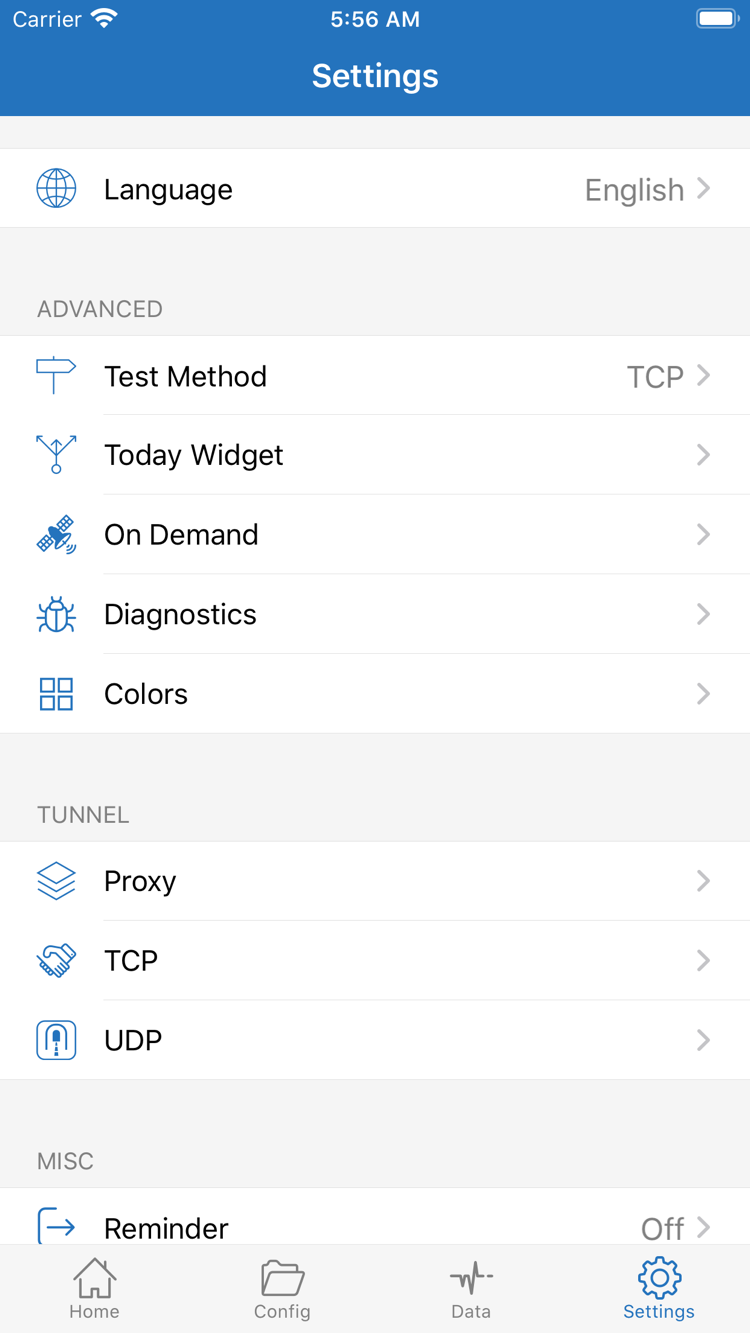
Check the selected server's Host, Port, protocol, and authentication fields. If you use a subscription, refresh it once and recheck the selected entry. In Settings, review Test Method and understand the current method before interpreting Connectivity Test results. If one test fails but webpages work, first check the test destination and method; a single test result does not necessarily mean the whole connection has failed.
If access works in Proxy but fails in Config, check Rule, FINAL, and policy references in the active configuration. If both modes fail, keep the server and mode unchanged and try another network you can use to distinguish a network issue from a server issue. If only one destination fails, the destination service itself may be the cause; repeatedly refreshing a subscription won't fix every access problem.
Check On Demand and Diagnostics
On Demand connects automatically when specified conditions are met. For initial troubleshooting, note its current settings, temporarily turn it off, and reproduce the issue using the manual switch. Otherwise, automatic reconnection may make a switch that turns off and back on difficult to assess. Once manual connections are stable, restore On Demand and test its conditions one at a time. Adjust options such as Proxy, TCP, and UDP in Settings to suit your needs; don't change every option just because it's there.
For further troubleshooting, open Diagnostics and record the step where the issue occurs, the network in use, the selected Global Routing mode, and the separate results for Connectivity Test and webpage access. Before sharing records or screenshots, hide full subscription URLs, passwords, authentication details, and personally identifiable information. Include only the fields and error descriptions needed to reproduce the issue.
If the issue persists, use Frequently Asked Questions and Troubleshooting to check by symptom. For configuration sections, rule priority, and policy details, see Rules and Configuration Reference. To maintain your setup, refresh your existing subscription as needed. App updates are handled through the App Store; these are separate actions.